
Secure your WordPress website
Definitions
Securing your WordPress admin dashboard helps protect your website from unauthorized access, brute-force attacks, and malicious bots. Implementing tools like a custom login URL and Two-Factor Authentication (2FA) adds critical layers of security beyond your standard username and password.
Before you start
✅ Our network firewall actively monitors and blocks malicious bots by learning their patterns over time. However, securing your WordPress dashboard adds an essential layer of personal protection for your WordPress website.
⚠️ Brute-force attacks are common on WordPress sites. These automated bots attempt to guess your login credentials. Masking your login URL and enforcing 2FA code are two of the most effective ways to stop them.
ℹ️ You will need access to your WordPress admin dashboard to install and configure these security plugins. If you need a refresher on how to manage your WordPress plugins, check out the WordPress plugin management guide.
🚨 Make sure you save your new custom login URL and your 2FA backup codes in a secure location. If you lose them, you may be temporarily locked out of your own website.
Step by step
Hide your WordPress admin login URL
ℹ️ By default, the WordPress login page is located at https://yourdomain.com/wp-admin or https://yourdomain.com/wp-login.php Because this is public knowledge, bots target these specific URLs. Using the WPS Hide Login plugin allows you to change this URL to something unique, immediately stopping unauthorized login attempts. This is a simple yet highly effective way to secure your WordPress website.
1. Log in to your WordPress admin dashboard
2. From the left-hand menu, navigate to Plugins > Add New
3. In the search bar, type WPS Hide Login
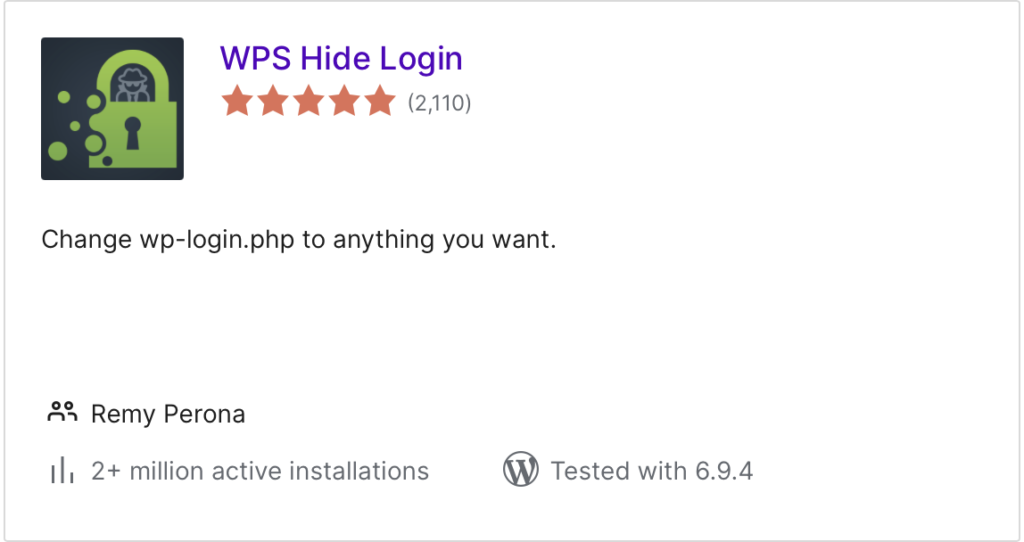
4. Locate the plugin and click Install Now, then click Activate
5. Once activated, go to Settings > WPS Hide Login from the left-hand menu
6. Scroll down to the Login url field
7. Enter your new login path URL
💡 Tip: When choosing a login path URL, try to make it something difficult to guess. Our suggestion is using a sequence of two to three random words, you can use online tools such as the Random Word Generator to help you.
8. Click Save Changes
❗Important: Immediately bookmark your new login URL. The default wp-admin login URL will no longer work. This will be the new login link all your WordPress users (regardless of role) need to use to sign into your WordPress dashboard going forward.
Set up Two-Factor Authentication (2FA)
Two-Factor Authentication (2FA) requires a secondary form of verification (a time sensitive code, tied to your device) in addition to your password to provide access to your WordPress dashboard. That means, even if a malicious actor guesses your password, they cannot access your site without your one-time code, linked to your physical device.
There are many free 2FA plugins availabl for WordPress. For this guide, we will use the setup process for the Two Factor Authentication plugin, however these steps are common to most reputable 2FA plugins.
1. Log in to your WordPress admin dashboard
2. Navigate to Plugins > Add New
3. In the search bar, type Two Factor Authentication
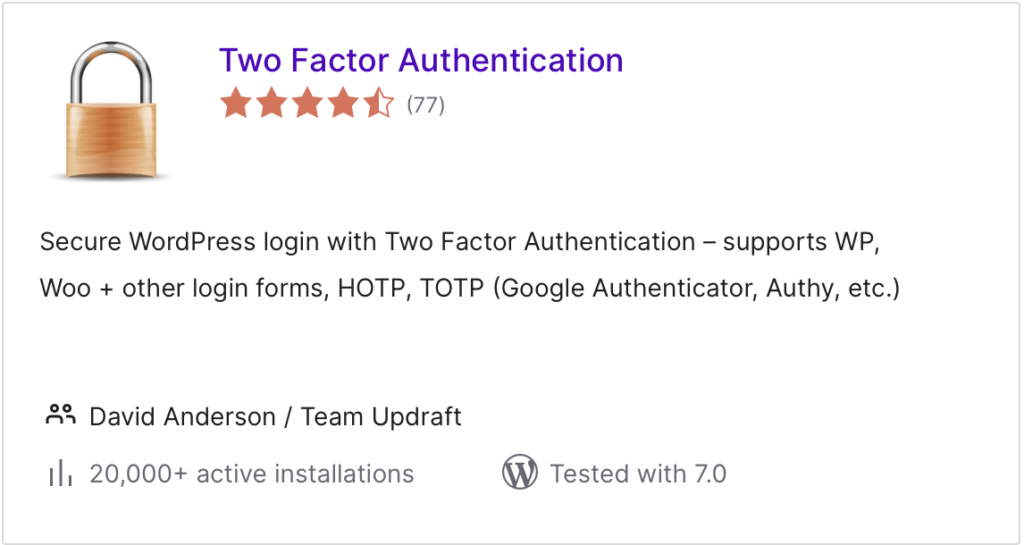
4. Locate the plugin and click Install Now, then click Activate
5. Once activated, look at your left-hand WordPress menu. You will see two new sections:
- Two Factor Auth: This is where you configure your personal settings
- Settings > Two Factor Authentication: This is where WordPress administrators can set site-wide rules (such as requiring 2FA for specific user roles).
6. Click on Two Factor Auth in the top-level left-hand menu to set up your personal device
7. Open the authenticator app (e.g., Google Authenticator, Authy) on your mobile device
📱Note: If you don’t already have an authenticator app on your mobile phone, make sure to stop here and download one by going to the App or Play store on your phone and downloading one. The Google Authenticator app works well and is easy to use.
8. Use your authenticator app to scan the graphical QR code displayed on your WordPress screen and click Save
9. Optional but recommended: Once the app is paired, check the site-wide settings (Settings > Two Factor Authentication) to make sure the plugin is configured to require 2FA for all Administrator accounts. You should also test the 2FA code is working, by logging out of your WordPress dashboard and logging back in, to see if it prompts you for the code.